
ASK_Palette is the replacement for KM_GridPalettes
Keyboard Maestro Palette Generator
Create a 2-D Grid of Buttons to Launch Keyboard Maestro Macros
Keyboard Maestro comes with four different types of palettes: Global Macro Palette, Applications Palette, Conflict Palette, and Macro Group Palettes. (Keyboard Maestro Palettes)
The Macro Group Palettes can be presented in a variety of styles: as a list of macro names, as a grid of names, as a grid of icons plus names, or a grid of only icons. Most commonly the simple list style is used, and I think it is the most familiar to users. The icon-grid style is most visually similar to what KM_GridPalettes produces. If you are familiar with icon-grid palettes, KM_GridPalettes might seem redundant, but there are significant differences.
KM_GridPalettes runs as an independent application on your Mac. From this one application you can access and use all the palettes you have designed. Only one palette is active at a time, but you can jump from one to another. KM_GridPalettes can launch Keyboard Maestro macros, and since it is just a regular application, Keyboard Maestro can manipulate it in return — for example, selecting different palettes. It is straightforward to have a Keyboard Maestro palette and a KM_GridPalettes palette functioning at the same time.
KM_GridPalettes allows the user to design, in a window, a grid of buttons that can be clicked to launch assigned Keyboard Maestro macros. In this context, one can think of it as a virtual Elgato Stream Deck. Below are some sample grids that can be created.
Comparison with the Elgato Stream Deck
The Elgato Stream Deck permits the assignment of physical buttons to Keyboard Maestro macros. The picture below shows the 15-button model; it comes in various sizes.

In David Spark's Keyboard Maestro Field Guide, he shows the sample Stream Deck configuration below, designed on a 32-button unit.
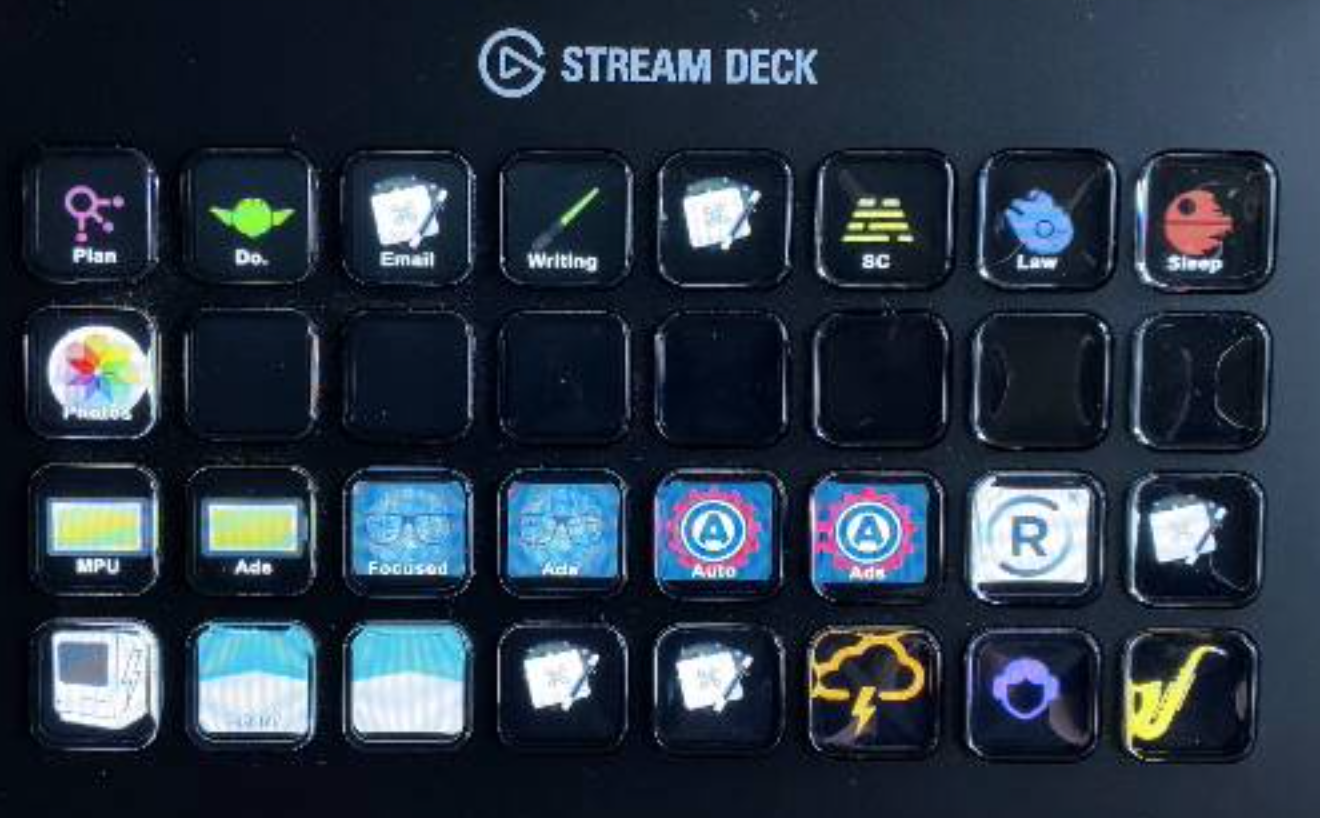
A matching grid of buttons can be created with KM_GridPalettes. Clicking on these buttons fires off Keyboard Maestro macros just as the hardware device does.

Button Design Examples
The user is free to design any graphics to appear on the buttons. One ready source of designs is emoji graphics sized to 64 pixels. Starting at the top row, you can imagine the buttons conveying the notions "Maximize," "Minimize," "Slow Down," "Speed Up." Second row: "Bad," "Good," "Short," "Tall." Third row: "Lazy," "Industrious," "Ugly," "Beautiful." Fourth row: "Creepy," "Cute," "Modest Start," "Accomplished End."
I should probably apologize to the grasshoppers, pigs, and spiders for reinforcing negative stereotypes.

The small orange letters in the lower-right corner of some buttons represent an optional way to display the keyboard shortcut that can be used in place of clicking with the mouse. A yellow information panel at the bottom of the grid displays supplementary information about the button under the cursor. On the left side, the palette ID and button ID are shown — this information is transmitted to Keyboard Maestro so the correct macro runs. On the right, the shortcut is displayed in orange. In the center, explanatory text (a "tip") clarifies the meaning of the button graphic. In the lower half of this palette, the user has not yet assigned any pictures; the program shows the button ID and any assigned shortcuts as a default.

Another source of button designs with a unified look is Apple's SF Symbols. The two palettes below take advantage of that source.
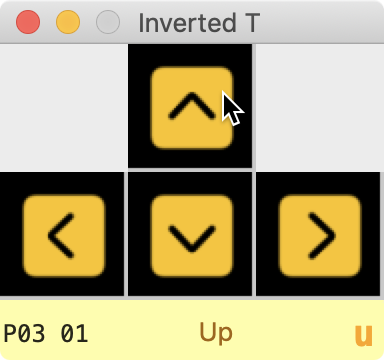

Several buttons in the next palette are created using the text function of a design program. I happen to use Affinity Designer, but most design programs offer this functionality. In that environment, you have complete control of text size, color, orientation, and so on. Application icons are available from the Get Info window of any app and can be captured for use on a KM_GridPalettes button.

The next palette is designed to control a specific application — in this case, Zoom. The functions the user needs in their own particular environment can be selected, placed on the palette, and invoked by Keyboard Maestro macros associated with the various buttons. In a complex app like Excel, you can isolate the small subset of functions you actually need and put them on your palette. Since they invoke Keyboard Maestro macros, they can combine multiple steps into one. The icons identify each function; when the cursor hovers over a button, a textual description also appears. In the example below, the cursor is over the button that will Mute All Others.

Below is a palette with a miscellaneous assortment of images. Some are drawn in vector graphics programs. Some have text in the image. One is a photograph of an owl sized to fit 64 pixels. The top row of three button images has been created to blend into a single image, although the underlying integrity of three separate buttons is preserved. The center button of the third row is "invisible" and does not respond to clicks. The button in the lower-right corner has not been assigned any image.

The next palette is one in my own active use. The left button sets up the font; the next soft-wraps text in BBEdit; the next declares the left-side version to be "bad"; and so on.

Building a Palette
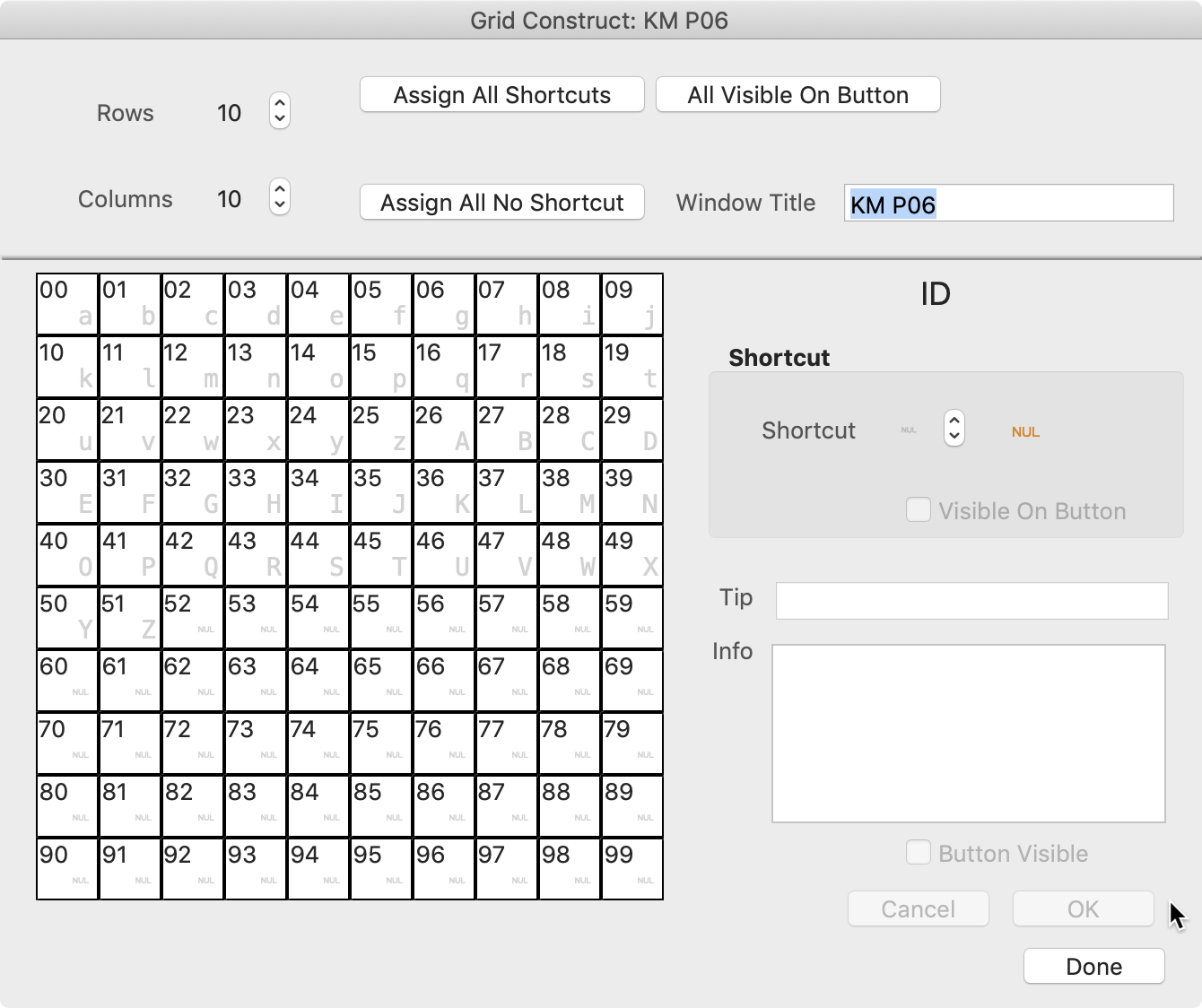
The above are finished designs. Below is the raw initial palette provided — a 10 × 10 grid of buttons that the user molds to their needs. It defines the largest possible palette. Usually you would need something smaller, and the tools exist to specify that.

The application provides tools that allow the user to modify any palette, including the initial one: determine the number of rows and columns, assign shortcuts, provide tips, and add information about the purpose of individual buttons.
If the purpose of a button is particularly complex or hard to remember, that button can be assigned a paragraph of explanatory text during the design process. Just what does the owl mean? Access that explanation with an Option-click on the button.

After the bones of the palette have been specified, you can assign pictures to individual buttons. Create 64-pixel images using whatever programs you prefer, then name the PNG files with the first two characters referring to the owning button. The picture tool in KM_GridPalettes helps you associate images with their buttons.

Individual palettes can be renamed or deleted, and new palettes can be created.

The design work, which takes a bit of time and consideration, is usually done only when a palette is first created, though palettes can be modified later as additional needs become evident. After that, the program exists primarily as a Keyboard Maestro controller. Once it is up and running, you can freely move from one palette to another. For those familiar with Elgato Stream Deck terminology, an individual palette is analogous to a "profile" — selecting a different palette corresponds to selecting a different profile.
A more thorough explanation of the program is supplied in the downloadable manual (see sidebar).
Copyright © 2021 Robert Livingston
Permission to use, copy, modify, and/or distribute this software for any purpose with or without fee is hereby granted, provided that the above copyright notice and this permission notice appear in all copies.
THE SOFTWARE IS PROVIDED "AS IS" AND THE AUTHOR DISCLAIMS ALL WARRANTIES WITH REGARD TO THIS SOFTWARE INCLUDING ALL IMPLIED WARRANTIES OF MERCHANTABILITY AND FITNESS. IN NO EVENT SHALL THE AUTHOR BE LIABLE FOR ANY SPECIAL, DIRECT, INDIRECT, OR CONSEQUENTIAL DAMAGES OR ANY DAMAGES WHATSOEVER RESULTING FROM LOSS OF USE, DATA OR PROFITS, WHETHER IN AN ACTION OF CONTRACT, NEGLIGENCE OR OTHER TORTIOUS ACTION, ARISING OUT OF OR IN CONNECTION WITH THE USE OR PERFORMANCE OF THIS SOFTWARE.